Home · Armour · -<{ Robot lookin' thang SKIN PACK! }>-
Click and drag to rotate
Armour
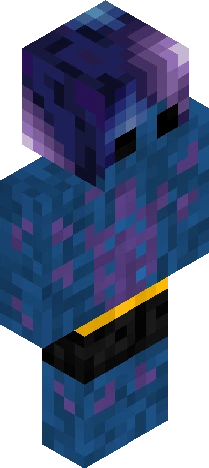
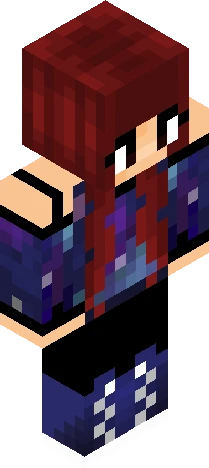
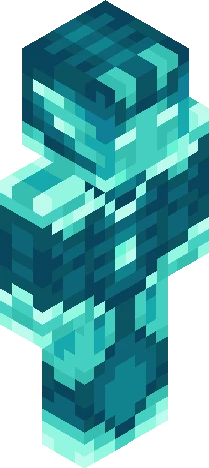
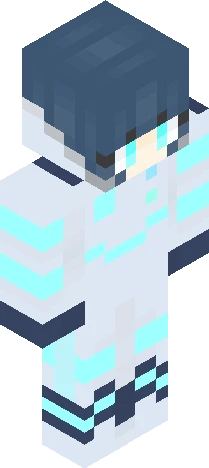
-<{ Robot lookin' thang SKIN PACK! }>-
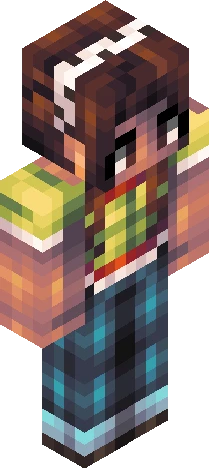
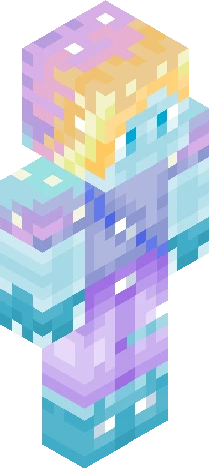
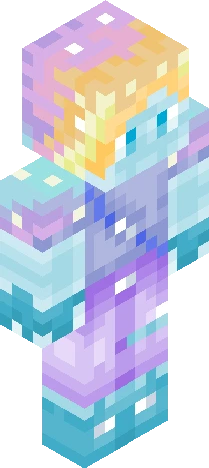
🤖 Squish dat show more button 🤖 Hello! This is the final robot, and is also connected to every other robot lookin thang I have made! You are free to download any or all of them!! Blue: https://www.minecraftskins.com/skin/24185854/----robot-lookin--thang----/ Purple: https://www.minecraftskins.com/skin/24190439/----drone----/ Green: https://www.minecraftskins.com/skin/24195440/----robot-lookin--thang-mark-3-----/ Yellow: https://www.minecraftskins.com/skin/24205335/----tank----/ Orange: https://www.minecraftskins.com/skin/24210322/----dust----/ Red: https://www.minecraftskins.com/skin/24215419/----give-up--give-up--and-feed-the-machine--------/ Pink: https://www.minecraftskins.com/skin/24220768/----menace----/ I hope you enjoy using these skins!!
64×64 · classic or slim is detected from the PNG
Eaglercraft · Minecraft
Como usar este skin no Eaglercraft
Baixe o PNG e aplique no cliente Eaglercraft que você já usa. Os menus mudam conforme o site. Este site não distribui o jogo.
- 1Download the PNG with the button above.
- 2Open your Eaglercraft 1.8 client in the browser.
- 3On the title screen, open Options, then the skin control. It is often named Skin or Change Skin.
- 4Upload this PNG, or paste a direct image link if that menu asks for a URL.
- 5Join a world. The skin stays in this browser for that client.
Standard model · 64×64. Nunca pedimos a senha do jogo. Um arquivo de skin é só a arte.
Usar este skin no Minecraft
- 1Download the same PNG.
- 2In the Minecraft Launcher, open Skins and choose a new skin.
- 3Pick classic or slim so the arms match this skin, then upload the file.
- 4Bedrock can use this artwork where that device lets you import a custom skin PNG. The file itself is the standard Java skin layout.