Home · Cat · farewell, skindex </3
Click and drag to rotate
Cat
farewell, skindex </3
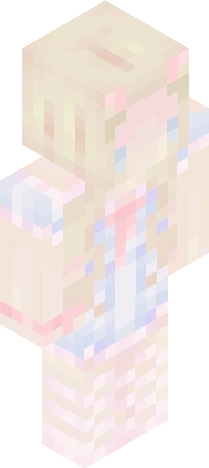
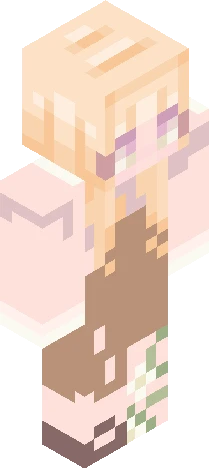
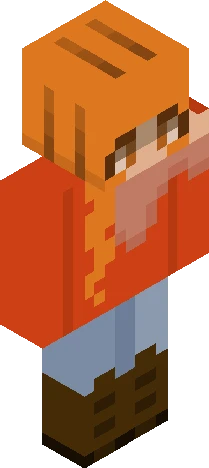
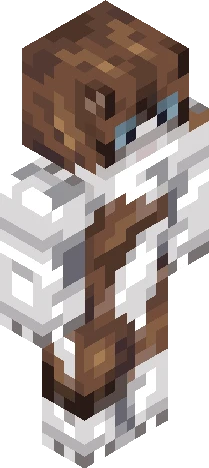
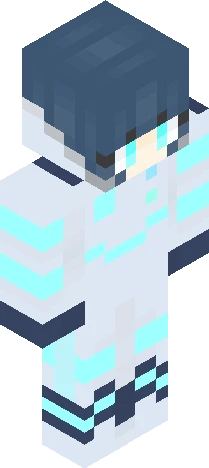
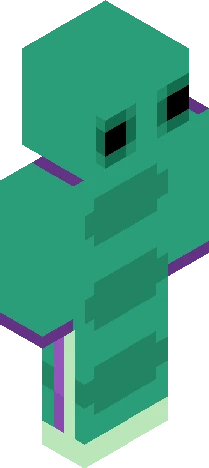
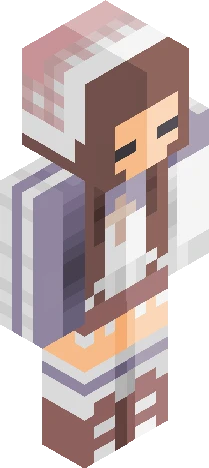
show more (Pixel art is Totoro :3 ) Ive decided to leave Skindex. I might come back someday but not for a while. I posted all the results for my contests and I put a reminder on my calendar for all my raffles and current rc so I can post results for those on time. I havent been posting as much recently because I lost motivation, school is starting soon and im trying to get my life together. I want to give shoutouts to my friends, xXtuxpiano, NightMoonlight, and UndertaleKitten. They are kind people and great skinners who were kind to me through my time here. Bye, Skindex, Ill miss you </3 ~kitty
64×64 · classic or slim is detected from the PNG
Eaglercraft · Minecraft
How to use this skin in Eaglercraft
Download the PNG, then apply it in the Eaglercraft client you already use. Menus differ by host. This site does not distribute the game.
- 1Download the PNG with the button above.
- 2Open your Eaglercraft 1.8 client in the browser.
- 3On the title screen, open Options, then the skin control. It is often named Skin or Change Skin.
- 4Upload this PNG, or paste a direct image link if that menu asks for a URL.
- 5Join a world. The skin stays in this browser for that client.
Standard model · 64×64. We never ask for a game password. A skin file is only artwork.
Use this skin in Minecraft
- 1Download the same PNG.
- 2In the Minecraft Launcher, open Skins and choose a new skin.
- 3Pick classic or slim so the arms match this skin, then upload the file.
- 4Bedrock can use this artwork where that device lets you import a custom skin PNG. The file itself is the standard Java skin layout.