Click and drag to rotate
Glitch
S T A T I C
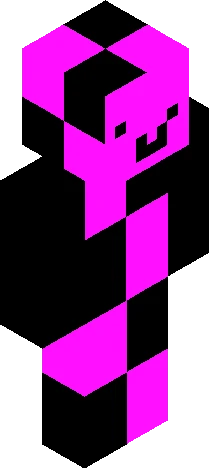
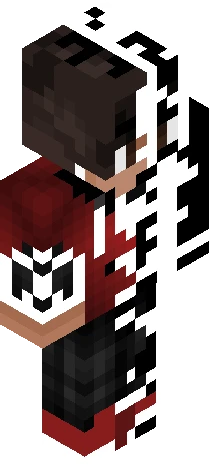
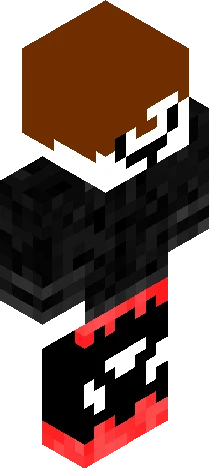
B-B-R-R-R-E-E-E-A-A-K-K-K-I-I-I-N-N-N-G... N-N-N--E-E-E-W-W-W-S-S-S... [ SIGNAL LOST ] 01001010 00100000 01000101 01010010 01010010 01001111 01010010 R-Reconnecting... B-B-BREAKING... BR-BR-BR-BREAKING N-N-NNEWS!! Welcome to S-S-Skindex Net News CONNECTION RESTORED Welcome back to International Skindex Net News, SNN! Today's report comes from Elizabeth12Hamilton, also known as LIZZ. "I've officially finished this skin! It has a split design with cyan on one side and red on the other, with a black center to make the colors stand out. I wanted it to look kind of glitchy, like two different energies fighting each other. This skin took me quite a while to finish, and I'm really happy with how it turned out. I hope you guys like it as much as I do!" SIGNAL STABLE That wraps up today's report! Thanks for watching SNN, and we'll see you in the next broadcast. END TRANSMISSION
64×64 · classic or slim is detected from the PNG
Eaglercraft · Minecraft
Utiliser ce skin dans Eaglercraft
Télécharge le PNG, puis applique-le dans le client Eaglercraft que tu utilises déjà. Les menus varient selon l’hébergeur. Ce site ne distribue pas le jeu.
- 1Download the PNG with the button above.
- 2Open your Eaglercraft 1.8 client in the browser.
- 3On the title screen, open Options, then the skin control. It is often named Skin or Change Skin.
- 4Upload this PNG, or paste a direct image link if that menu asks for a URL.
- 5Join a world. The skin stays in this browser for that client.
Standard model · 64×64. Nous ne demandons jamais de mot de passe de jeu. Un fichier de skin n’est que de l’illustration.
Utiliser ce skin dans Minecraft
- 1Download the same PNG.
- 2In the Minecraft Launcher, open Skins and choose a new skin.
- 3Pick classic or slim so the arms match this skin, then upload the file.
- 4Bedrock can use this artwork where that device lets you import a custom skin PNG. The file itself is the standard Java skin layout.