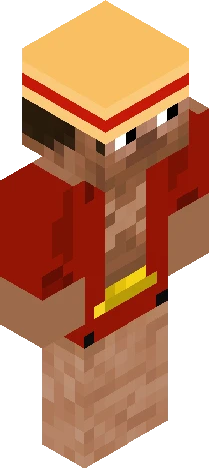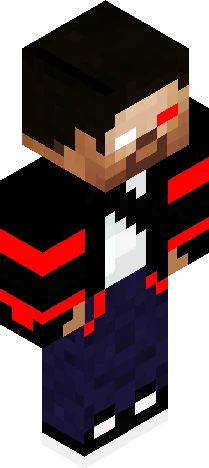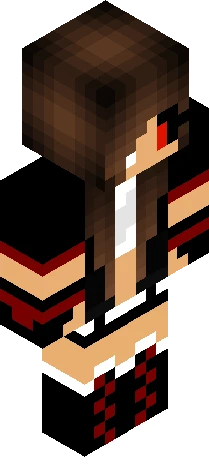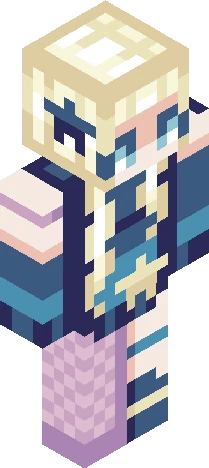
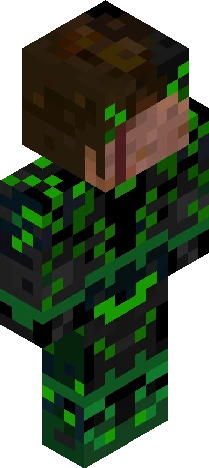
Click and drag to rotate
Aesthetic
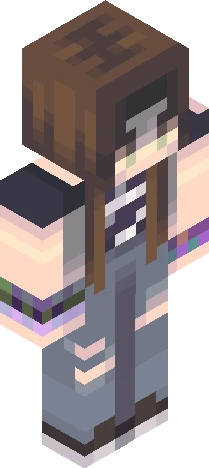
h e r o b r i n e - Important question!
by mochhi · Minecraft Skins community listing
h e r o b r i n e - Important question! is a free 64×64 Minecraft skin PNG in the Eaglercraft Studio library. Tagged aesthetic, herobrine, purple, steve. Compatible with Eaglercraft and Minecraft Java — rotate the 3D viewer, edit online, or download.
Uploader notes
UPDATE: Ive made the channel!: https://www.youtube.com/watch?v=IcjfcNkLUdc Helohelo everyone, today im back with a more detailed skin, actually I guess a spin off from my zombie skin (it has the same look and feel but obvi different). I wanted to make herobrine since i hadn't done so yet teehee. I actually really enjoy making these more detailed skins, idk why but its like calming LOL. ANYWAYS, ok so I was thinking of maybe starting a youtube channel? I already recorded me making this skin and I was wondering if you guys would like a speedpaint of this skin with a voiceover of me over it! I might just post some tutorials or just speed paints, idk but I was just wondering if anyone would be interested to see that lol cause it would be a lil awkward if no one wants that. Im kinda nervous to put myself out there but on the other hand I do want share my work with u all, so lemme know! I hope u all are doing alright, ily <3 NOTE: I have NOT made an account yet so all the 'mochhi' accounts on yt are not mine.
64×64 · classic or slim is detected from the PNG
Added value
What’s on this skin page
Preview, categories, compatibility, and tools on this page — not a bare file mirror.
- Creator
- mochhi
- Source
- Minecraft Skins community listing · curated on Eaglercraft Studio
- Format
- 64×64 PNG skin texture
- Model
- Classic or slim (detected from the PNG)
- Compatible with
- Eaglercraft · Minecraft Java · Bedrock (classic skin import)
- Studio tools
- 3D preview · browser editor · avatar maker
- Categories
- Aesthetic, Herobrine, Purple, Steve
Download
How to download this free skin
- 1Click Download skin to save the free PNG.
- 2Follow Use in Eaglercraft below for client steps, or import the file in Minecraft Java (Profile → Skins).
- 3Optional: open Avatar maker for a Discord / YouTube profile picture from the same texture.
Downloads are free. An optional account only saves favorites across devices.
Edit
How to edit this skin
- 1Open Edit skin to load this PNG in the browser editor.
- 2Paint, swap layers, or remix parts — changes stay on your device until you download.
- 3Export a new 64×64 PNG and use it in Eaglercraft or Minecraft Java.
Eaglercraft · Minecraft
在 Eaglercraft 中使用这款皮肤
下载 PNG,然后在你已经使用的 Eaglercraft 客户端里应用。菜单因网站而异。本站不提供游戏客户端。
- 1Download the PNG with the button above.
- 2Open your Eaglercraft 1.8 client in the browser.
- 3On the title screen, open Options, then the skin control. It is often named Skin or Change Skin.
- 4Upload this PNG, or paste a direct image link if that menu asks for a URL.
- 5Join a world. The skin stays in this browser for that client.
Standard model · 64×64. 我们不会索要游戏密码。皮肤文件只是图片。
在 Minecraft 中使用这款皮肤
- 1Download the same PNG.
- 2In the Minecraft Launcher, open Skins and choose a new skin.
- 3Pick classic or slim so the arms match this skin, then upload the file.
- 4Bedrock can use this artwork where that device lets you import a custom skin PNG. The file itself is the standard Java skin layout.
Similar skins
More library skins from related categories — curated for discovery, not random filler.