
Home · Information · *+NOTIFICATION SIGNUPS!+*
Click and drag to rotate
Information
*+NOTIFICATION SIGNUPS!+*
*+Show*More+* It's about time! Here are the new notification sign ups! How to sign up: 1. Follow me! 2. Put in the comments "sign me up" and you will receive notifications! 3. If you ever want to stop getting notifications, just delete your comment! Please keep questions and anything unrelated to notifications out of the comments, I would like to keep this organized. Instead, go to my profile page and ask there! Thank you and have an excellent day!
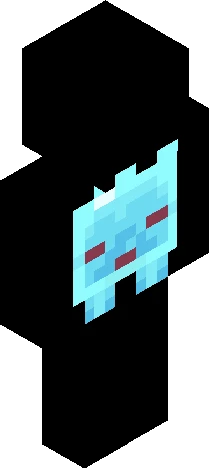
64×64 · classic or slim is detected from the PNG
Eaglercraft · Minecraft
Como usar este skin no Eaglercraft
Baixe o PNG e aplique no cliente Eaglercraft que você já usa. Os menus mudam conforme o site. Este site não distribui o jogo.
- 1Download the PNG with the button above.
- 2Open your Eaglercraft 1.8 client in the browser.
- 3On the title screen, open Options, then the skin control. It is often named Skin or Change Skin.
- 4Upload this PNG, or paste a direct image link if that menu asks for a URL.
- 5Join a world. The skin stays in this browser for that client.
Standard model · 64×64. Nunca pedimos a senha do jogo. Um arquivo de skin é só a arte.
Usar este skin no Minecraft
- 1Download the same PNG.
- 2In the Minecraft Launcher, open Skins and choose a new skin.
- 3Pick classic or slim so the arms match this skin, then upload the file.
- 4Bedrock can use this artwork where that device lets you import a custom skin PNG. The file itself is the standard Java skin layout.
Similar skins
