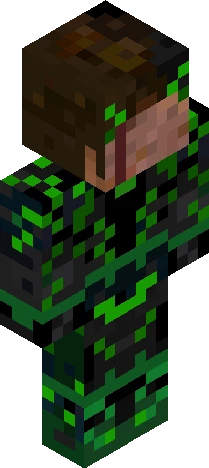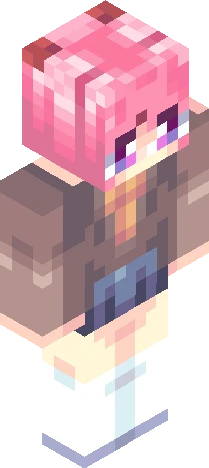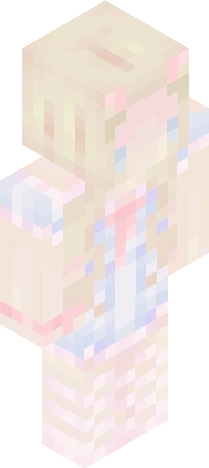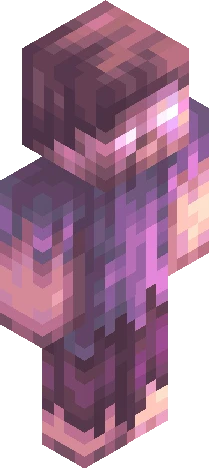
Home · Aesthetic · V e r b e n a . :
Click and drag to rotate
Aesthetic
V e r b e n a . :
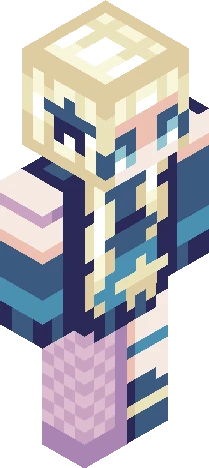
(See more of desc) Hii Everyone!! It has been two years since I made a last skin >_< I have been busy with my A-levels and just getting my mental health back on track...Praise God!! Colours I have used: Mint: #cce6d3 Linen: #e9e7d2 Lavender: #cccad7 Ecru: #e2d6a0 Chartreuse: #c1cc8b Bisque: #e3c09f If you got anything you would like me to make, pls feel free to comment!!! Any questions: Open to questions!! I wish you all a lovely day, feel free to download and make edits, make sure to credit me. Bye bye!!
64×64 · classic or slim is detected from the PNG
Eaglercraft · Minecraft
How to use this skin in Eaglercraft
Download the PNG, then apply it in the Eaglercraft client you already use. Menus differ by host. This site does not distribute the game.
- 1Download the PNG with the button above.
- 2Open your Eaglercraft 1.8 client in the browser.
- 3On the title screen, open Options, then the skin control. It is often named Skin or Change Skin.
- 4Upload this PNG, or paste a direct image link if that menu asks for a URL.
- 5Join a world. The skin stays in this browser for that client.
Standard model · 64×64. We never ask for a game password. A skin file is only artwork.
Use this skin in Minecraft
- 1Download the same PNG.
- 2In the Minecraft Launcher, open Skins and choose a new skin.
- 3Pick classic or slim so the arms match this skin, then upload the file.
- 4Bedrock can use this artwork where that device lets you import a custom skin PNG. The file itself is the standard Java skin layout.