Home · Armour · -<{ GIVE UP, GIVE UP, AND FEED THE MACHINE!!!! }>-
Click and drag to rotate
Armour
-<{ GIVE UP, GIVE UP, AND FEED THE MACHINE!!!! }>-
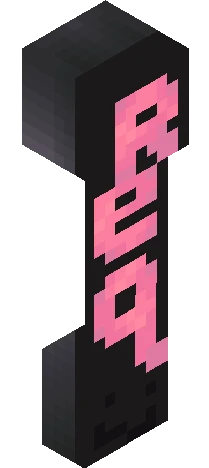
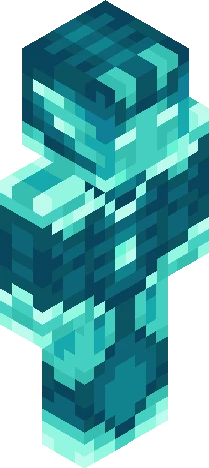
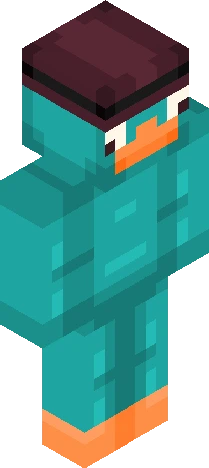
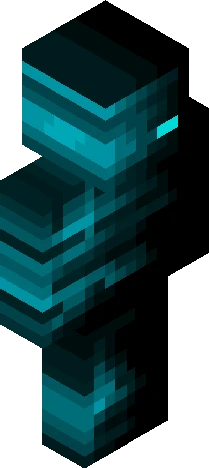
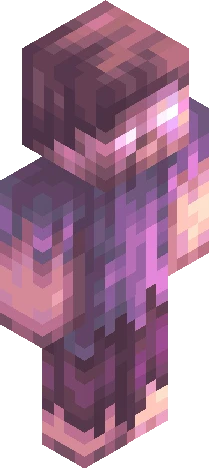
🤖 Squish dat show more button 🤖 Feed The Machine - RED I couldn't resist it, I HAD to do it... ... Anyways, second to last robot! Next one's gonna be awesome, then the skin pack will be finished! (Edit: ACTUALLY, the skin pack skin will be a robot too..) Link to the rest of the robot lookin thangs: https://www.minecraftskins.com/skin/24223099/----robot-lookin--thang-skin-pack-----/
64×64 · classic or slim is detected from the PNG
Eaglercraft · Minecraft
이 스킨을 Eaglercraft에서 사용하기
PNG를 받은 뒤, 이미 쓰는 Eaglercraft 클라이언트에서 적용하세요. 메뉴는 사이트마다 다릅니다. 이 사이트는 게임을 배포하지 않습니다.
- 1Download the PNG with the button above.
- 2Open your Eaglercraft 1.8 client in the browser.
- 3On the title screen, open Options, then the skin control. It is often named Skin or Change Skin.
- 4Upload this PNG, or paste a direct image link if that menu asks for a URL.
- 5Join a world. The skin stays in this browser for that client.
Standard model · 64×64. 게임 비밀번호는 요청하지 않습니다. 스킨 파일은 그림일 뿐입니다.
이 스킨을 Minecraft에서 사용하기
- 1Download the same PNG.
- 2In the Minecraft Launcher, open Skins and choose a new skin.
- 3Pick classic or slim so the arms match this skin, then upload the file.
- 4Bedrock can use this artwork where that device lets you import a custom skin PNG. The file itself is the standard Java skin layout.