Home · Cute · \ Mischievous pumpkin /
Click and drag to rotate
Cute
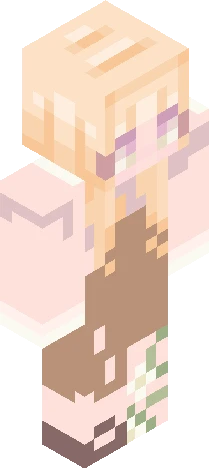
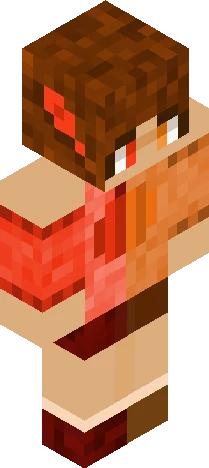
\ Mischievous pumpkin /
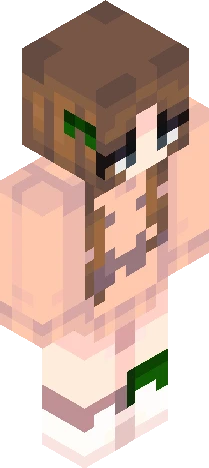
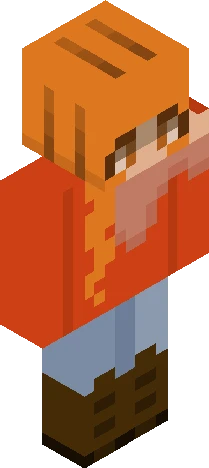
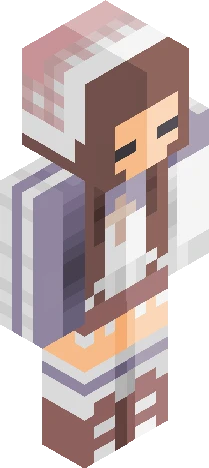
v expand for info v made a pretty little autumn girl ~ I must apologise for the lack of uploads, I've been working a little more on my channel! -<- which reminds me- I have yet to officially announce it. Though I'll probably do it in a another post, I have just finished my colour video c: been asked a few times about colouring, so I tried my best to put together a guide -> https://youtu.be/ijbDHUwWxq0 It's taken me a week to finish, so I'd really appreciate it if you'd please view! Open to criticism since it's my very first guide (and that I struggled with this >~<') phew- it's incredibly late here, but thank you for viewing, and hope you enjoy ~ ! <3
64×64 · classic or slim is detected from the PNG
Eaglercraft · Minecraft
このスキンを Eaglercraft で使う
PNG をダウンロードし、今使っている Eaglercraft クライアントで適用します。メニューはホストごとに違います。このサイトはゲーム本体を配布しません。
- 1Download the PNG with the button above.
- 2Open your Eaglercraft 1.8 client in the browser.
- 3On the title screen, open Options, then the skin control. It is often named Skin or Change Skin.
- 4Upload this PNG, or paste a direct image link if that menu asks for a URL.
- 5Join a world. The skin stays in this browser for that client.
Standard model · 64×64. ゲームのパスワードは聞きません。スキンファイルは画像だけです。
このスキンを Minecraft で使う
- 1Download the same PNG.
- 2In the Minecraft Launcher, open Skins and choose a new skin.
- 3Pick classic or slim so the arms match this skin, then upload the file.
- 4Bedrock can use this artwork where that device lets you import a custom skin PNG. The file itself is the standard Java skin layout.