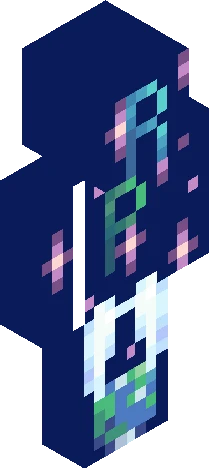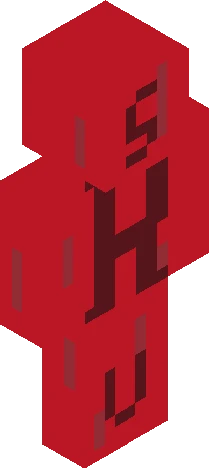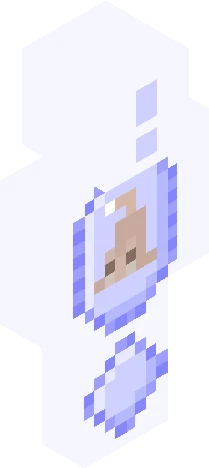

Click and drag to rotate
Icy
~ Announcement ~
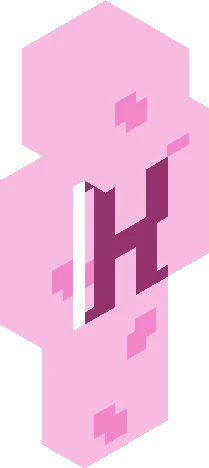
This is NOT a signups; please hold the character profiles. Hello! As you might remember, I made a poll, and it looks like Planet Tarine {cold} was the one everyone liked the most! I will be hosting a Planet Tarine roleplay very soon. *Cheering* The one in second place, if I remember correctly, was the Harry Potter roleplay. If you would like me to also make a Harry Potter roleplay at some point, I might do that. Honestly, Tarine was my favorite of the options, but my second favorite was Revive the Planet. I will probably use that one at some point. Anyways, if you would like to be notified when I make any of the above, now's the time to tell me. I'll say it again, this is NOT a signups. You may start thinking about the character you would like to add, but hold them off until I post the actual signups. If you haven't guessed, the skin was supposed to look snowy/icy
64×64 · classic or slim is detected from the PNG
Eaglercraft · Minecraft
How to use this skin in Eaglercraft
Download the PNG, then apply it in the Eaglercraft client you already use. Menus differ by host. This site does not distribute the game.
- 1Download the PNG with the button above.
- 2Open your Eaglercraft 1.8 client in the browser.
- 3On the title screen, open Options, then the skin control. It is often named Skin or Change Skin.
- 4Upload this PNG, or paste a direct image link if that menu asks for a URL.
- 5Join a world. The skin stays in this browser for that client.
Standard model · 64×64. We never ask for a game password. A skin file is only artwork.
Use this skin in Minecraft
- 1Download the same PNG.
- 2In the Minecraft Launcher, open Skins and choose a new skin.
- 3Pick classic or slim so the arms match this skin, then upload the file.
- 4Bedrock can use this artwork where that device lets you import a custom skin PNG. The file itself is the standard Java skin layout.