Home · contest · Summer contest results
Click and drag to rotate
contest
Summer contest results
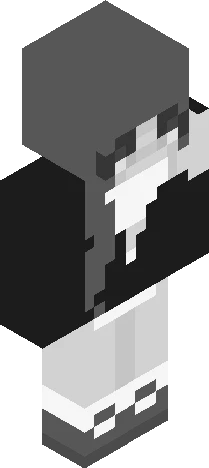
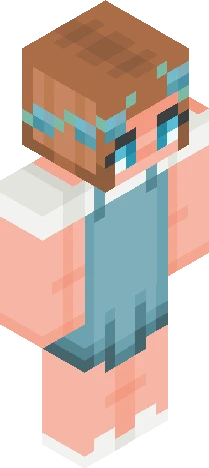
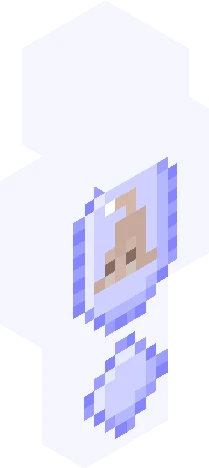
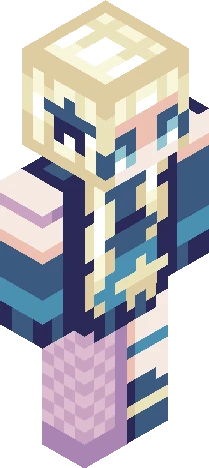
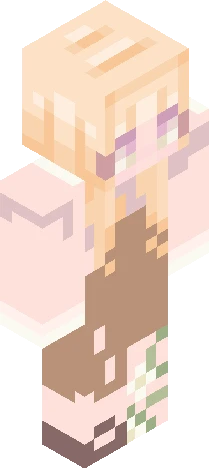
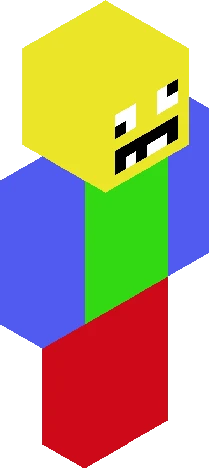
and the winners are... 1st: Chicknbanana! 2nd: JustV1ink! 3rd: ABP12! Chicknbanana's skin https://www.minecraftskins.com/skin/24211232/isabella-fireside-girl/ JustV1ink's skin https://www.minecraftskins.com/skin/24308414/candace-from-phineas-and-ferb-rc/ APB12's skin https://www.minecraftskins.com/skin/24206644/-*meep-*/ congradulations to the winners! Chicknbanana will be getting plus one follow and 2 pages of likes! JustV1ink will get a follow on her alt acount if she has one cuz im allready following her. 1 page of likes APB12 will earn a follow on an alt acount if she has one cuz im also already following her sooo...1/2 page of likes sorry for the late results!
64×64 · classic or slim is detected from the PNG
Eaglercraft · Minecraft
इस स्किन को Eaglercraft में इस्तेमाल करें
PNG डाउनलोड करें और उसे उस Eaglercraft क्लाइंट में लगाएँ जिसका आप पहले से उपयोग करते हैं। मेनू होस्ट के अनुसार बदलते हैं। यह साइट गेम वितरित नहीं करती।
- 1Download the PNG with the button above.
- 2Open your Eaglercraft 1.8 client in the browser.
- 3On the title screen, open Options, then the skin control. It is often named Skin or Change Skin.
- 4Upload this PNG, or paste a direct image link if that menu asks for a URL.
- 5Join a world. The skin stays in this browser for that client.
Standard model · 64×64. हम कभी गेम पासवर्ड नहीं माँगते। स्किन फ़ाइल केवल चित्र है।
इस स्किन को Minecraft में इस्तेमाल करें
- 1Download the same PNG.
- 2In the Minecraft Launcher, open Skins and choose a new skin.
- 3Pick classic or slim so the arms match this skin, then upload the file.
- 4Bedrock can use this artwork where that device lets you import a custom skin PNG. The file itself is the standard Java skin layout.