Home · announcement · 300 followers pc results!!
Click and drag to rotate
announcement
300 followers pc results!!
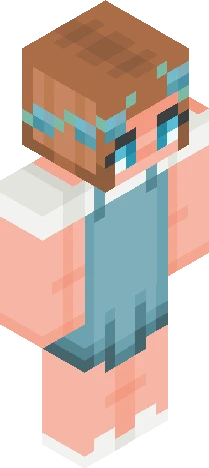
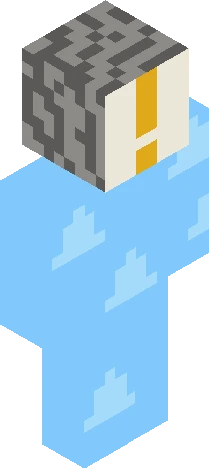
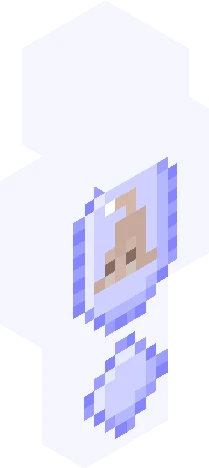
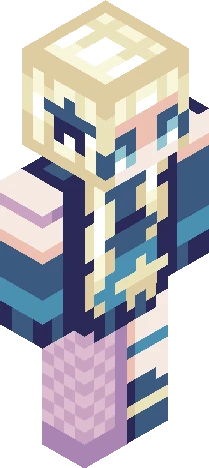
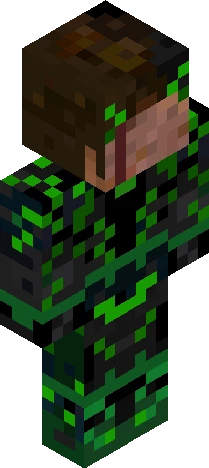
thank you everyone who participated and has waited for these!! HMs: feeling blue by violetrxse: https://www.minecraftskins.com/skin/24214131/--feeling-blue----pce-/ and blue straw by xamidnight: https://www.minecraftskins.com/skin/24169251/--blue-straw---pce--/ 3rd: sunken by gangstapanda31: https://www.minecraftskins.com/skin/24143980/---sunken-----pce/ 2nd: sunset in the caribbean by shade911mc: https://www.minecraftskins.com/skin/24152124/sunset-in-the-caribbean--pallette-contest-entry-for-wanderinginthought/ and sunset keys by mangopaws: https://www.minecraftskins.com/skin/24170578/-sunset-skys-/ 1st: speckled alder by thesilverfilly! https://www.minecraftskins.com/skin/24192729/speckled-alder---pce/ lots of great entries ^^
64×64 · classic or slim is detected from the PNG
Eaglercraft · Minecraft
Cómo usar este skin en Eaglercraft
Descarga el PNG y aplícalo en el cliente de Eaglercraft que ya usas. Los menús cambian según el sitio. Esta página no distribuye el juego.
- 1Download the PNG with the button above.
- 2Open your Eaglercraft 1.8 client in the browser.
- 3On the title screen, open Options, then the skin control. It is often named Skin or Change Skin.
- 4Upload this PNG, or paste a direct image link if that menu asks for a URL.
- 5Join a world. The skin stays in this browser for that client.
Standard model · 64×64. Nunca pedimos la contraseña del juego. Un archivo de skin es solo ilustración.
Usar este skin en Minecraft
- 1Download the same PNG.
- 2In the Minecraft Launcher, open Skins and choose a new skin.
- 3Pick classic or slim so the arms match this skin, then upload the file.
- 4Bedrock can use this artwork where that device lets you import a custom skin PNG. The file itself is the standard Java skin layout.