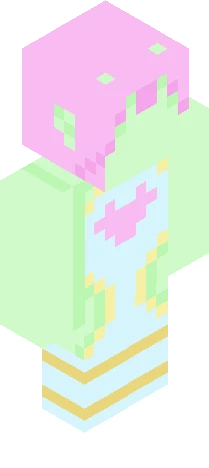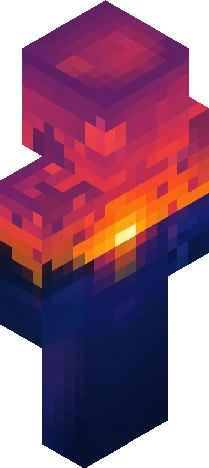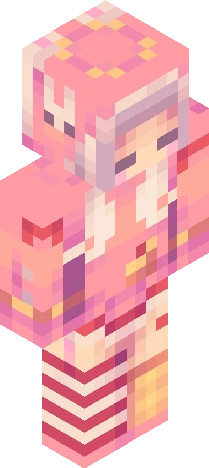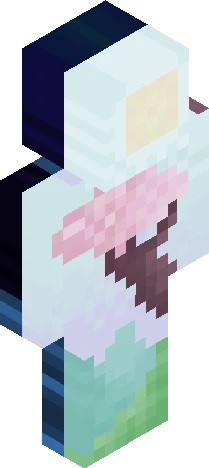
Home · bleed · Was It My Fault? - Break
Click and drag to rotate
bleed
Was It My Fault? - Break
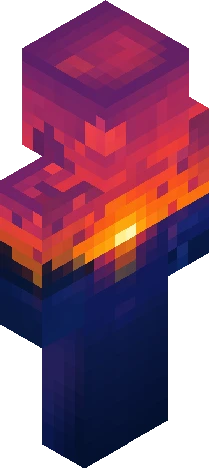
+\/ show more \/+ So. . . You might've noticed I ghosted the site for a bit. Long story short, I'm not exactly doing well. Depressed, unmotivated, all that good stuff. I'm putting the 0.5% I have left into real life, and I just can't find the time or energy to make skins for now. Losing all my progress on a skin I worked on or 26 hours didn't help either. (It was lightsourced, in case you were wondering.) I'm going to be taking a break from Skindex. Including comments; I'll read those when I'm back. This isn't me quitting, I *will* be back sometime, and soon. In the words of the Duke, "This isn't goodbye. It's goodbye for now."
64×64 · classic or slim is detected from the PNG
Eaglercraft · Minecraft
So nutzt du diesen Skin in Eaglercraft
Lade die PNG herunter und wende sie im Eaglercraft-Client an, den du bereits nutzt. Die Menüs unterscheiden sich je nach Host. Diese Website verteilt das Spiel nicht.
- 1Download the PNG with the button above.
- 2Open your Eaglercraft 1.8 client in the browser.
- 3On the title screen, open Options, then the skin control. It is often named Skin or Change Skin.
- 4Upload this PNG, or paste a direct image link if that menu asks for a URL.
- 5Join a world. The skin stays in this browser for that client.
Standard model · 64×64. Wir fragen nie nach einem Spielpasswort. Eine Skin-Datei ist nur Grafik.
Diesen Skin in Minecraft nutzen
- 1Download the same PNG.
- 2In the Minecraft Launcher, open Skins and choose a new skin.
- 3Pick classic or slim so the arms match this skin, then upload the file.
- 4Bedrock can use this artwork where that device lets you import a custom skin PNG. The file itself is the standard Java skin layout.